What you can do
An AI video editor matters when the task does not end with one clip. The video is assembled from scenes: each scene is a photo or video on the Media track, voiceover can be tied to a scene, and a weak part can be replaced without rebuilding everything else.
In Givon AI, generation, Favorites, voiceover, music, and subtitles are connected inside one project. Everything you create in Generation appears in the Editor's materials: voiceover and music go on their own tracks, subtitles are edited on the timeline, and export renders MP4 in the project format — 9:16, 16:9, 1:1, or 4:5.
Build a video by scenes
Generate episodes separately, choose working takes, and assemble a clear video structure.
Replace one weak scene
Select the scene on the timeline and put another material in its place with “Replace selected scene”. Other scenes and tracks stay as they are.
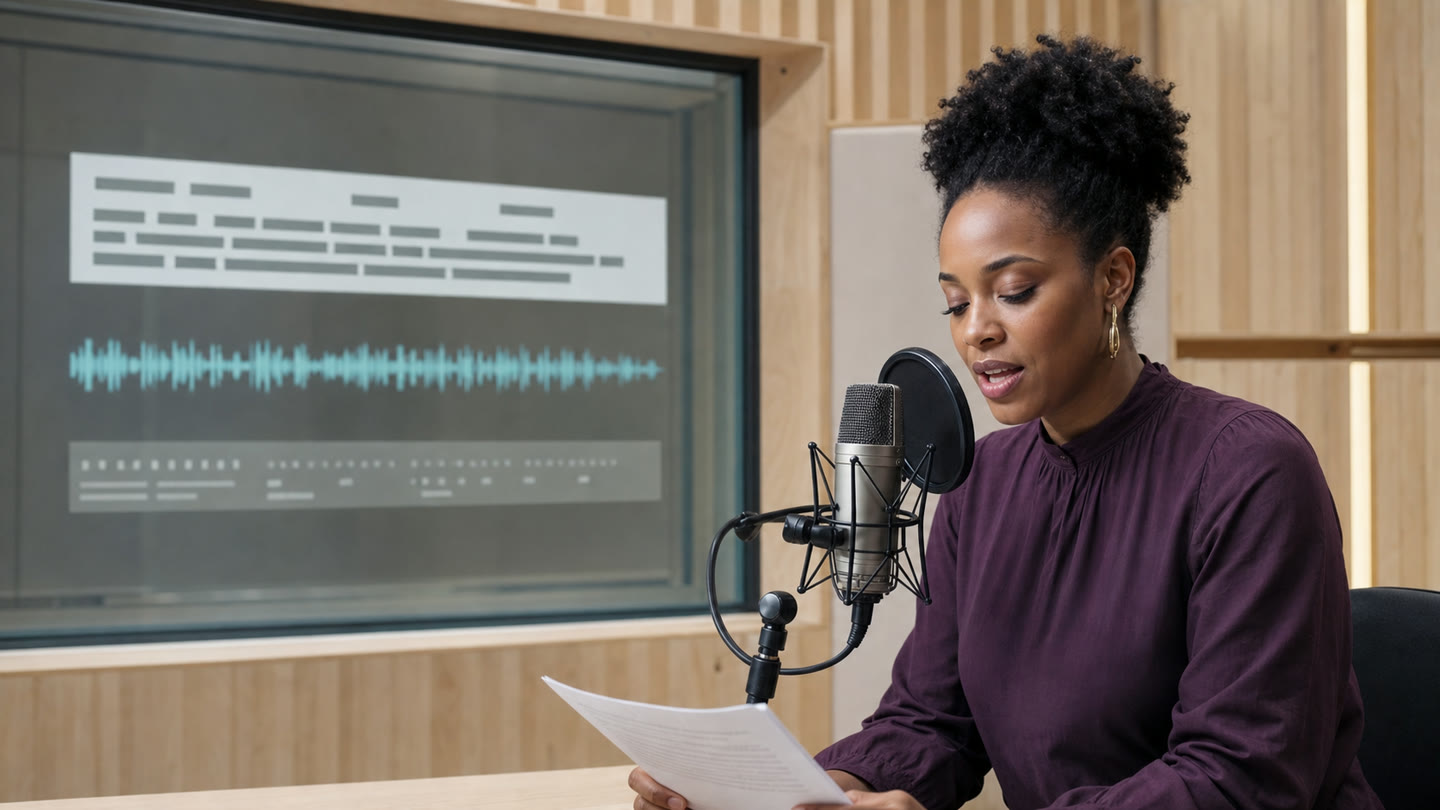
Generate voiceover from text
Write a line and choose a voice in Generation, then place the voiceover on a timeline range or drop it onto a scene so it moves with that scene.
Add music
Music runs on its own track, and Auto-ducking lowers it while voiceover is playing.
Add captions on the timeline
Edit text together with the scenes so you can see whether captions are readable and do not cover important visuals.
Export the final video
Export renders MP4 (H.264, 30 fps) in the project format: 1080×1920 for Reels, TikTok, and Shorts, 1920×1080, 1080×1080, or 1080×1350.
If your task is different
This page is about assembling a finished video. First takes and image animation are shorter workflows.
Examples: videos assembled in one workspace
Real Givon AI results, from character frames to a voiced vertical video without external editing.
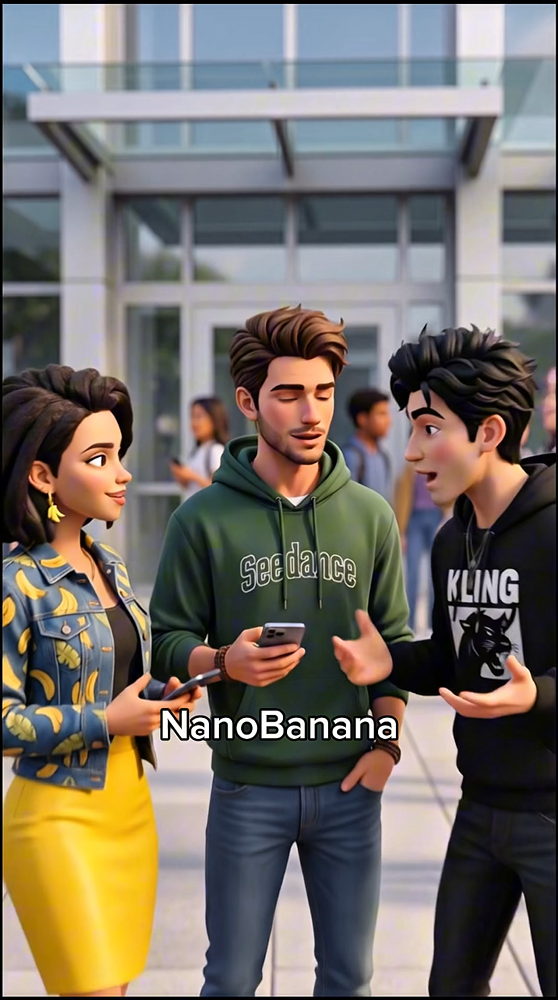
Dialogue scene with characters
Characters, lines, and timing are assembled in one project: visuals generated, dialogue voiced, vertical format ready for publishing.
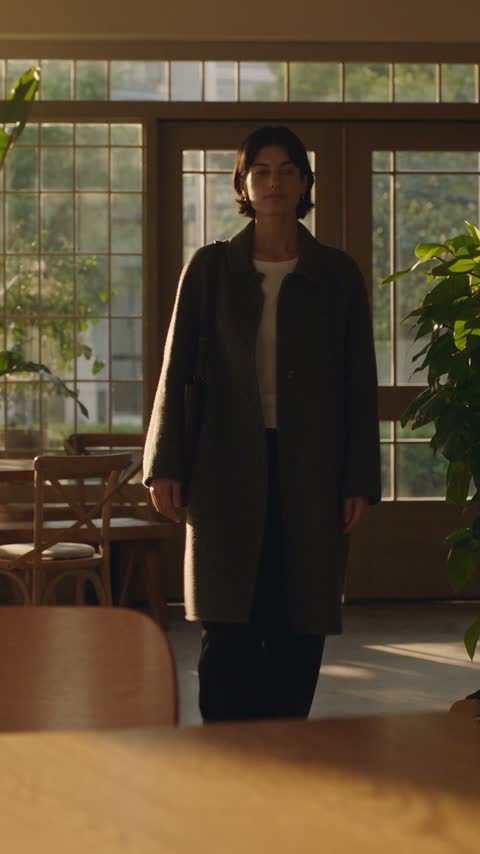
A 30-second scene in one piece
One connected product scene instead of several separate clips: a wide shot, the interaction with the product and a clean close-up. A take this long goes on the timeline as one scene.
How to write the prompt
Weak
Make a cool vertical ad video.
Better
A three-scene video: 1) close-up of the product on a light background, 2) short camera move showing a detail, 3) final frame with space for text and calm voiceover.
Models for scenes and voiceover
Scenes, control, and voiceover are different jobs. Generate them in the project's Generation tab — results appear in the Editor's materials right away.
- Seedance 2.5Scenes up to 30 seconds with sound, plus text-based edits of a finished clip when a scene needs fixing rather than a reshoot.from7.5 tk/ s
- Wan 3.0First and last frames plus video references make it easier to join scenes. 2–30 seconds.from2.01 tk/ s
- H3 Max TurboThe fastest H3 Max version for draft takes with sound, 5–15 seconds.from1.5 tk/ s
- Eleven v4Text-to-speech that reads each line in the context of the whole scene and follows emotion tags more closely. The file lands in project materials and goes on the Voiceover track.
How it works
Split the idea into scenes
Start with 2-3 scenes: opening, main action or demonstration, and final accent.
Generate key episodes
Create several takes per scene in Seedance, Wan, MiniMax, or Gemini Omni, then place the best take into the scene.
Save materials
Add strong frames and references to Favorites so product, character, and style hold across scenes and projects.
Add voice and captions
Check how the scenes read together with text and voice while the draft is still easy to change.
Watch the full video
Watch twice: with sound and without. If the message works in both modes, the structure is solid.
Export and keep the structure
Export the final version and keep successful scenes and references in Favorites for the next release.
Best use cases
Ads and promos
Build a video with an opening frame, product demonstration, and final CTA.
Reels series
Reuse structure, style, and saved references from episode to episode.
Explainer videos
Break a complex idea into clear scenes and reinforce the message with voiceover and captions.
Client drafts
Show a video structure before final production and replace scenes based on feedback.
Why scenes work better than one large prompt
When you try to generate a whole video with one prompt, one weak fragment breaks the entire result and cannot be fixed separately. A scene-based workflow lowers the cost of mistakes: rebuild one scene while the rest stays.
If you work with a product, character, or brand style, add key materials to Favorites and reuse them as references in the next scenes. This keeps the video visually connected even if scenes were generated at different times.
Why Givon AI
References stay available
Photos, video, and music from Favorites go into any project's Editor with “Add from Favorites”, without re-uploading.
Format and framing per platform
Pick one format for the whole video — 9:16, 16:9, 1:1, or 4:5 — and set Fit or Fill, zoom, position, and rotation for each scene.
What to keep in mind
The editor does not replace take selection
Generation produces variants. The result comes from choosing: generate several takes per scene and compare them by task.
Complex stories need scenes
Many events, characters, or locations in one prompt make the result hard to control. Work scene by scene.
Check voiceover and captions together with video
Scene rhythm may not match voice or text. Review readability before export while edits are still cheap.
The final version needs a full watch
Review pacing, voice, captions, rights, and platform requirements in the assembled video.
Series consistency depends on saved materials
Without reused references and structure, each episode starts from zero and visual style drifts.
FAQ
How is the AI video editor different from a generator?
A generator creates a separate clip. The AI video editor assembles clips into a full video where scenes, references, voiceover, captions, and export live in one project.
Why build a video by scenes?
A weak fragment can be replaced separately, strong scenes stay in place, and feedback becomes specific: which scene and what needs to change.
How does voiceover work?
Write the line and choose a voice in Generation; the voiceover appears in project materials. In the Editor, place it on a timeline range or tie it to a scene, and build subtitles from its text.
What format does export use?
MP4 (H.264, 30 fps). The format is set in Project settings: 9:16 (1080×1920) for Reels, TikTok, and YouTube Shorts, plus 16:9, 1:1, and 4:5.
Can I use my own materials?
Yes. Import photos, video, and audio straight into the Editor with the button or drag and drop. They become scenes or clips on the voiceover and music tracks; add strong materials to Favorites to keep product and character consistent across videos.
Is it free to try?
Registration does not require a card. Starter tokens cover the first scenes; after that you can use a plan or buy more tokens. Unused tokens do not expire.